How to Use 120 Cute Animals Coloring Pages for Kids to Build a Consistent KDP Interior
Creating a high-quality coloring book for Amazon's Kindle Direct Publishing requires more than just assembling a set of images. You need a structured approach to interior design, file preparation, and format consistency. The 120 Cute Animals Coloring Pages for Kids bundle offers a practical foundation for this process. This article walks through how to integrate this resource into your publishing workflow, from file preparation to final publication, with clear attention to quality control, format compatibility, and long-term use.
What This Bundle Contains and Why It Fits a Production Workflow
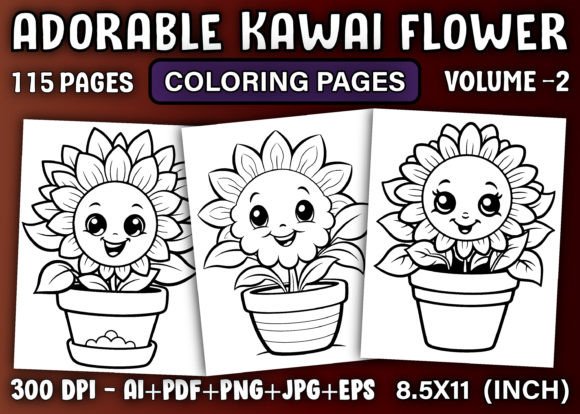
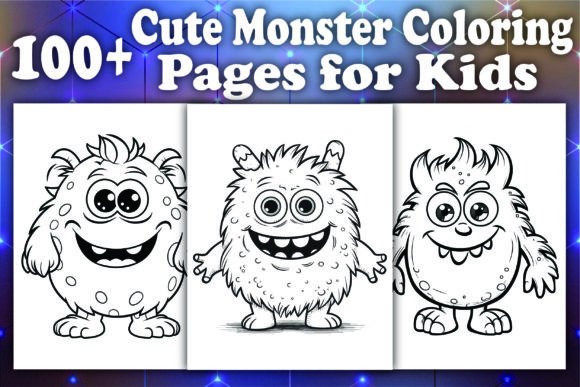
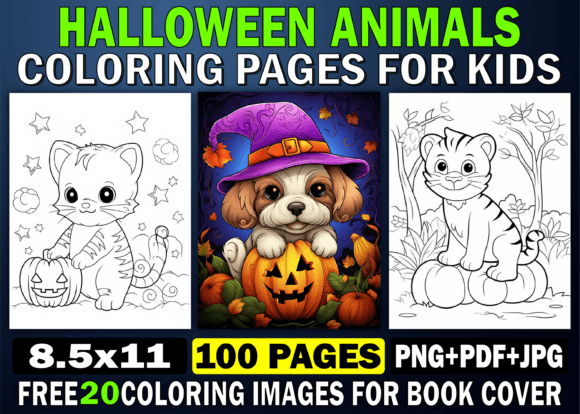
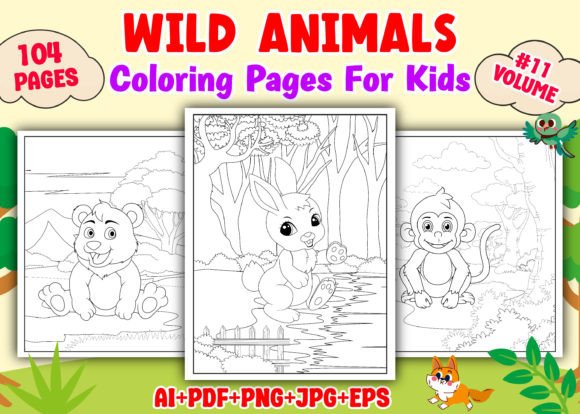
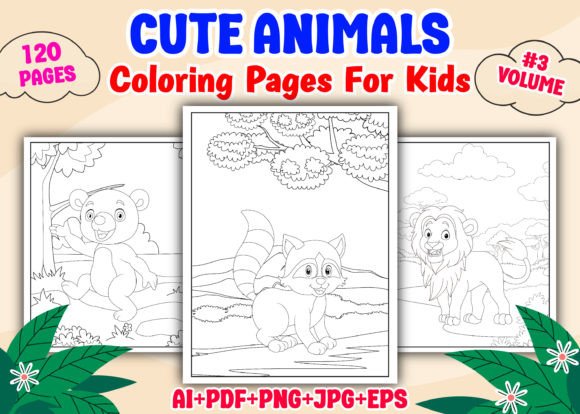
The 120 Cute Animals Coloring Pages for Kids bundle is a digital printable collection of animal-themed coloring pages. It includes five distinct interior variations, meaning you can create multiple book layouts from a single download. The package provides ready-to-print files in five formats: AI, EPS, PDF, JPG, and PNG. Each file is sized at 8.5 x 11 inches, the standard trim size for most KDP coloring books.
Having multiple format options is not just a convenience. It directly affects how smoothly you move through the production pipeline. AI and EPS files allow you to edit vector elements in professional design software. PDF files give you a print-ready proof that matches what Amazon will reproduce. JPG and PNG files work well for previews, mockups, and quick adjustments. If you are working with a designer, preparing a batch for a print-on-demand run, or testing different layouts, this range of formats eliminates the need to convert or re-export from scratch.
Organizing the Files Before You Start
Before you begin assembling your interior, take time to organize the downloaded ZIP file. The bundle arrives as a compressed archive, and extracting it into a clearly labeled folder will save you time later. Create subfolders for each format type: AI, EPS, PDF, JPG, PNG. If you plan to produce multiple book interiors from the same set, also create separate project folders for each volume or theme variation.
This level of organization is especially important if you are managing several KDP titles simultaneously. A clear file structure helps you avoid mixing up print-ready PDFs, ensures that you always know which file version is the latest, and makes it easier to hand off assets to a proofreader or a formatting assistant.
Choosing the Right Format for Your Workflow
The format you choose depends on the tools you use and the stage of the project.
- AI and EPS are best if you use Adobe Illustrator or Affinity Designer. They let you resize elements, adjust line thickness, or reposition artwork without losing quality. If you want to crop margins, add page numbers, or create a consistent border across all pages, these vector formats give you full control.
- PDF is the most reliable format for uploading to KDP. Amazon's system processes PDF files with predictable results, and you can directly upload a PDF without further conversion. Use the PDF files for your final proof and for the upload itself.
- JPG and PNG are useful for previews, social media mockups, and testing page order. They are also handy if you work with a layout tool that does not support vector files. Keep in mind that raster formats are resolution-dependent, so always confirm that the 300 DPI standard is preserved. This bundle delivers print-ready resolution, so the JPG and PNG files should meet that requirement.
A practical workflow is to start with AI or EPS for any edits, then export the final interior as a single PDF for upload. Use the PNG or JPG versions only for previews or promotional images, not for the final print submission.
Building Multiple Interiors from One Bundle
The description states that you can make at least five interiors with this bundle. That means you can rearrange, reselect, or repurpose the images to create distinct books. For example, you could produce:
- A standard 120-page book with all images in the original order.
- A simplified 60-page book using only the most popular animals.
- A themed book focusing on farm animals, jungle animals, or domestic pets.
- A version with mirrored pages for left-handed or right-handed preferences.
- A book with a different page margin or a bleeds-adjusted layout.
Each variation requires a separate PDF upload to KDP, but you only need to edit the files once. By keeping the original AI or EPS source files, you can export different combinations without recreating artwork. This approach is efficient if you are testing different price points, audience segments, or cover designs.
Quality Control Before Upload
Once you have assembled your interior PDF, run a few checks before uploading to KDP.
First, verify that all pages are in the correct order. Open the PDF and scroll through every page. Look for any flipped, duplicated, or skipped images. This is easy to miss when you are working with a large file, so take the time to scan each page manually.
Second, check the margins and bleed. KDP requires at least 0.125 inches of bleed on all sides for books with images that extend to the edge. The standard 8.5 x 11 inch trim size means your PDF should be 8.5 x 11 inches with proper bleed or with margins inside the trim line. The included files are print-ready, but you should still confirm that your assembled PDF matches KDP's specifications for your chosen trim size.
Third, test the file on a local printer before uploading. Print a few sample pages on standard office paper to see how the lines render. The artwork is designed for children, so the lines should be clear and thick enough for crayons or markers. If anything looks faint or broken, check the export settings and confirm that the PDF is saved at 300 DPI with no compression artifacts.
Finally, run the PDF through KDP's preview tool after upload. Amazon provides a digital proof that shows exactly how the book will look. Review the preview page by page. This step catches issues like missing fonts, incorrect page size, or unexpected color shifts. Since this bundle uses vector line art, font issues should be minimal, but it is always worth confirming.
Using the Bundle for Non-Publishing Projects
While KDP is the primary use case, this coloring book bundle also fits into other workflows.
For educators and homeschoolers, the PDF and JPG files can be printed directly for classroom or home use. You can select specific animal pages to complement a lesson on wildlife, habitats, or art. The single-sided page layout makes it easy to display finished work.
For bloggers and content creators, the PNG files work well as freebies or subscriber incentives. You can offer a sample pack of five to ten pages to build an email list, then sell the full bundle as a digital product. Because the files are print-ready, you do not need to spend time formatting or adjusting resolution.
For small business owners who sell printable products on Etsy or Gumroad, this bundle gives you a ready-made product line. You can list the full 120-page set or break it into smaller themed packs. The AI and EPS files allow you to add your branding, adjust the layout, or create a unique cover without redesigning the interior from scratch.
For freelance designers, this bundle can serve as a base for client projects. If a client needs a custom coloring book quickly, you can start with these vector files and modify the artwork to match their brand or theme. The ability to edit vector elements saves hours of manual drawing.
Long-Term Use and Asset Management
Because the bundle includes vector source files, it is a reusable asset. Store the AI and EPS files in a permanent archive folder. If you decide to create a second edition, a holiday version, or a compilation later, you can return to these files and export new interiors without buying a new set. This is especially useful if you plan to build a series of coloring books over time. A single purchase of the 120 Cute Animals Coloring Pages for Kids bundle can support multiple publications, reducing your per-book asset cost.
Keep a log of which files you used for each interior. A simple spreadsheet with columns for interior name, page selection, format used, and date of export helps you track versions and avoid rework. This kind of documentation is helpful if you ever need to update a published book or re-upload a corrected file.
Final Considerations for KDP Publishing
Before you hit publish, make sure you have the following in place:
- A completed PDF interior with all 120 pages (or your selected subset) correctly ordered and formatted.
- A matching cover designed to KDP specifications. The interior bundle does not include a cover, so you will need to create one separately. Use the same 8.5 x 11 inch trim size and coordinate the cover style with the interior theme.
- A clear description and keyword strategy for your Amazon listing. Highlight the number of pages, the variety of animals, and the print-ready quality of the interior.
- A proof copy ordered and reviewed. Even if the digital preview looks correct, a physical proof lets you check paper quality, binding, and color rendering.
The 120 Cute Animals Coloring Pages for Kids bundle simplifies the interior creation part of this process. It gives you a large, consistent set of images in multiple formats, ready for editing and upload. By organizing your files, testing your output, and using the vector source files for future projects, you can integrate this resource into a repeatable publishing workflow. Whether you are launching your first KDP title or adding to an existing catalog, this bundle provides a practical, quality-controlled foundation for your coloring book interior.